Your blog on your site
This page describes what visitors see, how each dashboard setting maps to it, and the rules the site applies when deciding what to show.
Pages and URLs
The blog publishes one page per post, category, tag, author and month, plus search results. The exact address and heading of each page is in the URL table of the Introduction.
List pages accept ?page=2 and so on for pagination. Posts with no category are grouped under /blog/category/uncategorized.
List pages
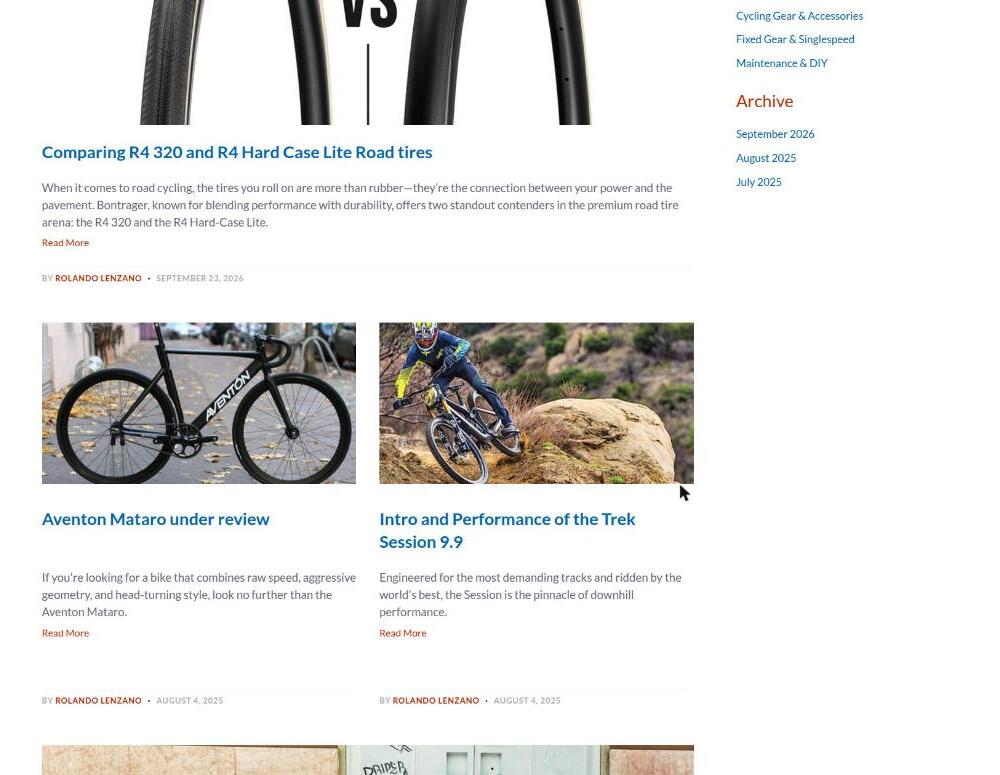
Every list page shows the same post cards, two per row, newest publish date first:
- The banner image.
- The title, linking to the post.
- The Intro Description and a Read More link.
- "By Author" when Display Author on List Page is on.
- The date when Display Date on List Page is on. The date format is "Month day, Year".
A Featured post spans the full width and shows a larger banner. It stays in date order.
The number of cards per page is the blog's Page Size. Older Posts and Newer Posts links move between pages.
The blog home also shows the blog Image at the top, then the Title and the Description. Category pages show the category description under the heading.
The sidebar
The sidebar appears on every blog page:
- Search articles. Searches the title, intro and content of the posts, and matches any part of a word: searching for
mountfinds posts that mention "mountain". Results use the usual post list, newest first. - Categories. Every category that has at least one visible post.
- Archive. One entry per month with posts, when Display Archive on List Page or Display Archive on Post Page is on.
- Featured Items. Post pages only, listing the post's Side Nav Featured Items. With one item, the block stays on screen while the visitor scrolls.
- The campaign right banner, when one applies.
The post page
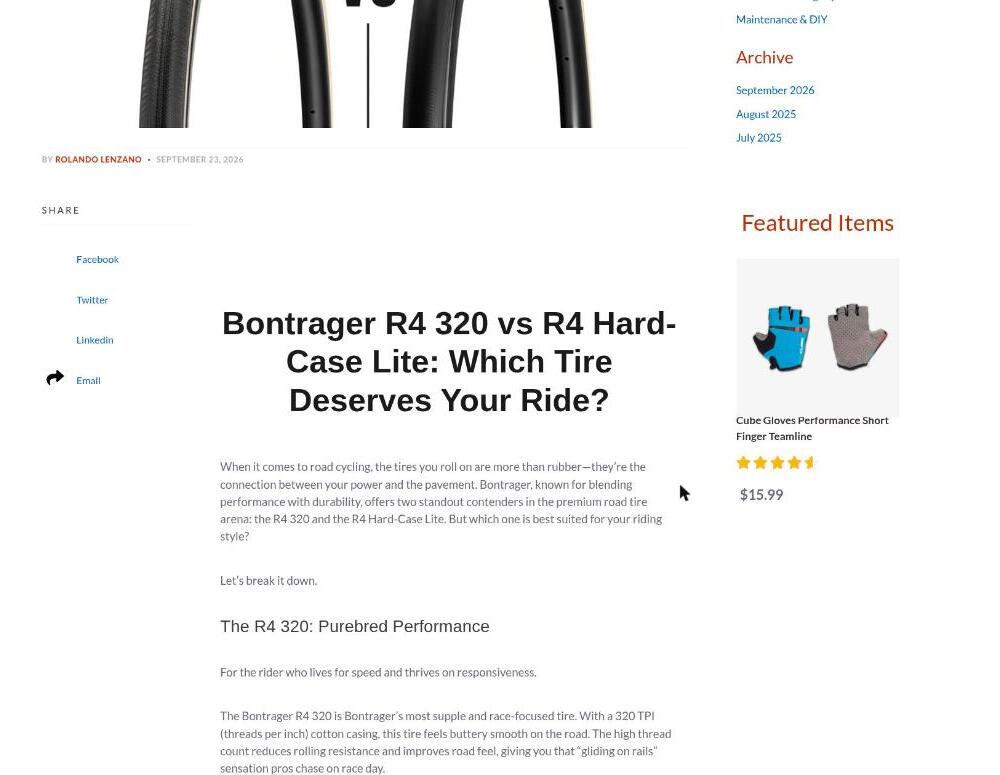
From top to bottom:
- Go back link.
- The title.
- Campaign top banners, when one applies.
- The banner image.
- "By Author" and the date, as enabled in Blog Settings.
- Share: Facebook, Twitter, Linkedin and Email links, each enabled in Blog Settings.
- The content.
- Attachments as "Download File: name" links, plus Download All Files when there are several.
- The tags.
- Campaign bottom banners.
- Related Items: the products picked on the post, in a grid with image, name, rating and price.
- Comments: the published comments and the form, when comments are on for the blog and not disallowed on the post.
A post that does not exist, is inactive, is scheduled for later, or is restricted for this visitor shows "Post was not found" and "Post does not exist or was deleted."
Which posts are visible
A post appears on the site when all of these are true:
- The blog is active and published on the current domain.
- The post is not Inactive.
- The post has no Publish Date, or the date has passed in the company time zone.
- The visitor is allowed to see it (see the next section).
Restricting posts to customer groups
Yello! can hide posts from visitors who are not logged in as a customer of a given level.
Setup
- Create a NetSuite custom list with your levels, for example Bronze, Silver and Gold.
- Create a custom field on the customer record that stores each customer's level.
- In Blog Settings, enter the list's script ID in Permission Source List and the field's script ID in Customer Permission Field.
- On each post you want to restrict, pick the allowed levels in Required Access Level.
How the site decides
- A post with no access level is public.
- A post with access levels is shown only to a logged-in customer whose level field matches one of them.
- Visitors who are not logged in, or whose level field is empty, see only public posts.
What a restricted visitor sees
- Restricted posts are missing from every list, from search, from category pages and from the product page's Documents tab.
- A direct link shows "Post does not exist or was deleted."
- There is no login prompt. If you want one, add a note in the blog Description or in the site's CMS areas.
- The month archive and the sitemap are not filtered, so they may still contain links to restricted posts.
Once a Permission Source List is set, saving a post with every level unticked can store an empty list rather than "no restriction". If a post that should be public disappears, open it, clear the field and save again.
SEO
Every page sets a title, description, Open Graph and Twitter tags, and structured data:
| Page | Title | Description | Keywords |
|---|---|---|---|
| List pages | Blog title | Blog META Description | Blog META Keywords |
| Post | Meta Title, or the post Title | Meta Description, or the Intro Description | Meta Keywords, or the tag names |
Post pages also emit article Open Graph tags, a large-image Twitter card using the banner, and an Article structured data block with the author, publish date and modification date.
Addition to Head fields let you inject raw HTML: the post's own on its page, and the category, tag or author one on their list pages.
Each domain gets a sitemap file named blogsitemap_<domain>.xml in its hosting root, listing the blog and every active post. It is regenerated automatically every day by BrokenRubik. Reference it from your robots.txt or sitemap index.
Products and posts
Posts link to products in two ways:
- Related Items on the post shows a grid of products under the post.
- Side Nav Featured Items shows products in the sidebar.
In the other direction, when a blog has posts on product pages enabled, each product page gains a Documents tab that lists every post whose Related Items or Side Nav Featured Items include the product.
Adding your own content
The blog pages include empty areas that your site's content manager (CMS) can fill: above and below the list of posts, above and below a post, and in the sidebar. Use them for extra banners or notes without touching the blog itself.