Introduction
Welcome to the Yello! SuiteCommerce Blog user manual. Yello! adds a blog to your SuiteCommerce site and gives you a dashboard inside NetSuite to run it. This guide explains every screen, every setting, what each one changes on your site, and the limits you will run into.
What Yello! does
- Publishes a blog on your SuiteCommerce site with a home page, post pages, and pages per category, tag, author and month.
- Manages content from NetSuite. Posts, comments, categories, tags, authors and campaigns are NetSuite custom records, edited through a dedicated dashboard.
- Links content to products. Posts can feature products in a carousel and a sidebar, and products can list the posts that mention them.
- Collects comments from visitors, with moderation and email notifications.
- Handles SEO with meta tags, Open Graph and Twitter cards, structured data, and a per-domain sitemap.
- Restricts posts to customer groups when you need gated content.
Who this guide is for
- Store managers who configure the blog and decide what appears on the site.
- Content creators who write posts and moderate comments.
The NetSuite side of the setup is handled by the BrokenRubik team. See Installation and updates for what it involves and what we need from you.
Opening the dashboard
- Log in to NetSuite.
- In the global search, type BR | Blog Launcher and open it. It is a Suitelet, so your role needs access to it. Ask an administrator if it does not appear.
- The dashboard opens inside a NetSuite page titled "Broken Rubik's SC Blog Dashboard".
On small screens the dashboard shows "Limited Mobile Functionality" and asks you to use a desktop. There is no mobile layout.
A tour of the dashboard
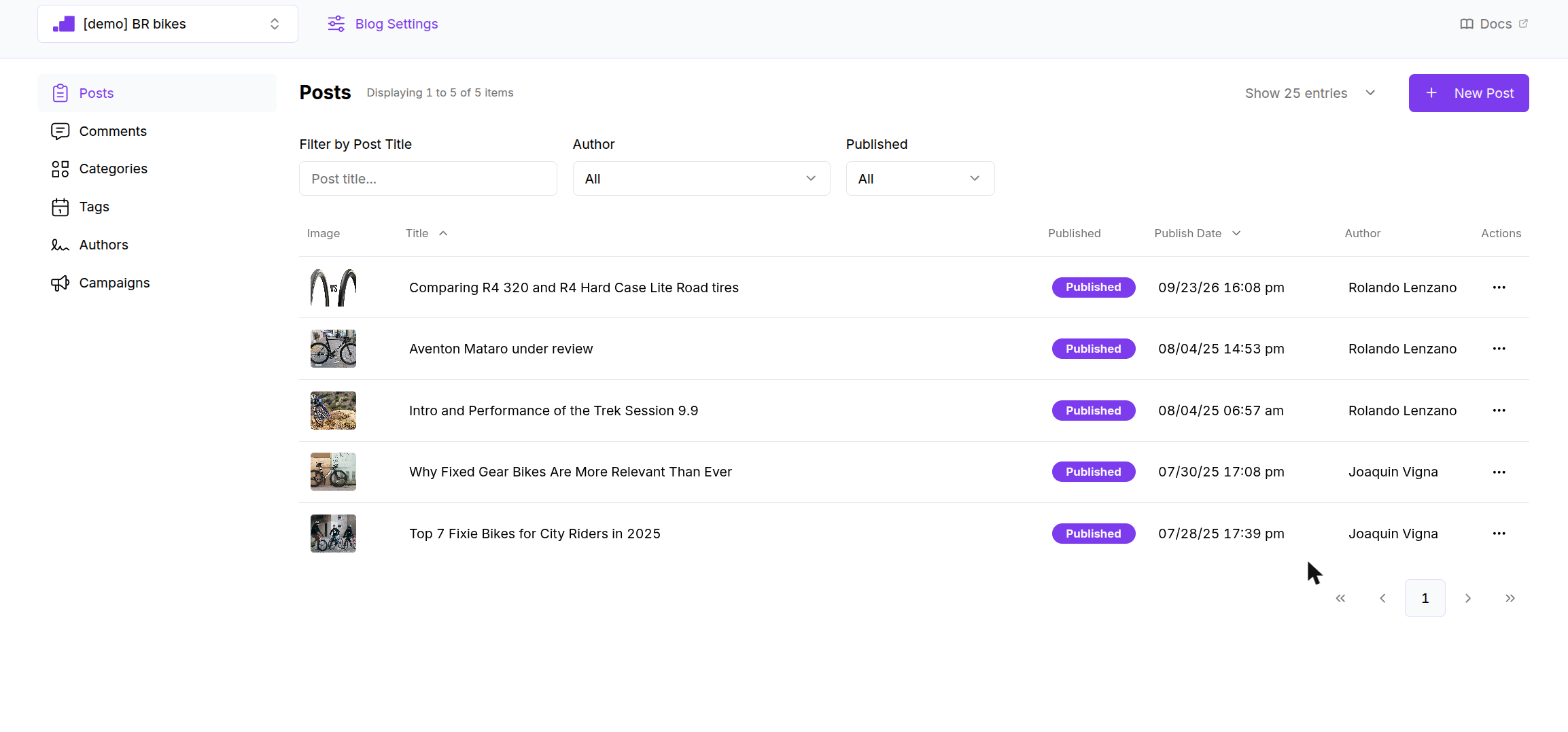
Header
- Blog selector (top left). Every list and form in the dashboard belongs to the blog selected here. Switching blogs asks for confirmation and takes you back to the post list. Inactive blogs show a crossed eye icon. The last entry, New Blog, opens the blog creation form.
- Blog Settings opens the settings for the selected blog.
- Docs opens this manual in a new tab.
Sidebar
| Section | What you manage there |
|---|---|
| Posts | Articles: content, images, attachments, SEO, related products, visibility |
| Comments | Visitor comments: publish, hide, reply, delete |
| Categories | Groups of posts, shown in the site sidebar |
| Tags | Keywords attached to posts, shown under each post |
| Authors | People who sign posts, with their own page on the site |
| Campaigns | Date-bound clickable banners on the blog pages |
Lists
Every list works the same way:
- The counter next to the title reads "Displaying 1 to 25 of 40 items".
- Show N entries sets the page size to 10, 25, 50 or 100. Changing it returns to page one.
- Click a column header to sort. Only some columns sort, and only one at a time.
- Click a row to open it. The ⋯ menu at the end of a row offers Edit and Remove.
- Pagination sits at the bottom right.
Forms
- Required fields are marked with
*. - Save and Cancel appear at the top and bottom of long forms.
- If a form has errors you cannot see, a dialog titled "Please check the following errors" lists them.
- Leaving a form with unsaved changes asks "Are you sure you want to leave this page?".
- Successful saves show a short green toast. Errors show a red toast with the server message.
Concepts you need before you start
Paths. Blogs, posts, categories, tags and authors each have a path, which becomes part of the URL on your site. A path may only contain lowercase letters, numbers and hyphens. The dashboard fills paths in from names, but it does not strip accents or punctuation, so check the result.
Blog URL structure
With a blog path of blog, a category path of category and a tag path of tag, your blog publishes these pages:
| Page | URL | Heading |
|---|---|---|
| Blog home | https://yourdomain.com/blog | The blog Title, or its Name |
| A post | https://yourdomain.com/blog/my-post-path | The post Title |
| A category | https://yourdomain.com/blog/category/my-category | The category name |
| A tag | https://yourdomain.com/blog/tag/my-tag | "Tagged as Name" |
| An author | https://yourdomain.com/blog/author/jane-doe | "Articles by First Last" |
| A month | https://yourdomain.com/blog/archive/september-2026 | "Articles from Month Year" |
| Search results | https://yourdomain.com/blog?search=words | "Search results for: words" |
Published, scheduled and inactive. A post is visible on the site when it is not inactive and its publish date has passed. Set a future date to schedule a post. There is no separate "draft" state: use the Inactive checkbox to keep a post hidden.
Everything is per blog. Categories, tags, authors, campaigns and comments belong to the blog selected in the header. You cannot share them between blogs.
Quick start
- BrokenRubik installs Yello! and connects it to your site.
- Create a blog: name, path, domain, image folder and a live preview domain.
- Create a few categories and authors.
- Write a post, pick a category and an author, set a publish date and save.
- Open the blog URL on your site. The post appears once its publish date has passed.
What you will find in this guide
- Create a blog and Blog Settings
- Posts, Comments, Categories, Tags, Authors, Campaigns
- Your blog on your site: what visitors see and how settings map to it
- Installation and updates: what installation involves and the changes only we can make
- Troubleshooting and limits: every error message and limit in one place