Comments
Visitors can comment on posts. Comments arrive unpublished, you review them in the dashboard, and you can answer each one with a reply that appears on the site.
Turning comments on
- In Blog Settings, tick Post Comment available. This enables comments on every post of the blog.
- To switch comments off on a single post, tick Disallow Comments in that post's Settings.
With comments on, every post page shows the published comments and a form.
How a visitor comments
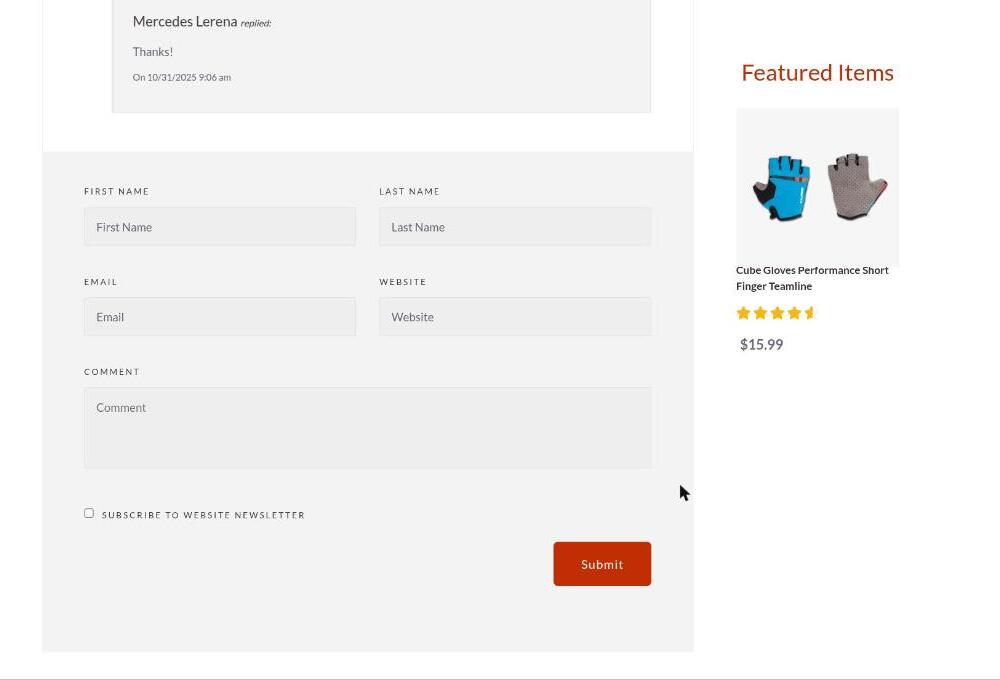
The form asks for First Name, Last Name, Email, Website (optional) and Comment, plus a Subscribe to website newsletter checkbox. No login is needed. After submitting, the visitor sees "Your comment has been successfully sent and will be displayed here once approved."
The comment is saved as Inactive, which means unpublished. Nothing appears on the site until you publish it.
If configured, two things also happen:
- A notification email goes to the addresses in the blog's Email(s) Notification for New Comment setting, with a link straight to the comment in the dashboard.
- If no customer or lead has the commenter's email, a lead is created in NetSuite with the name and email, flagged as coming from the blog. If the visitor ticked the newsletter box, the lead is subscribed.
Both depend on a one-time setup by BrokenRubik — see Installation and updates.
The comment list
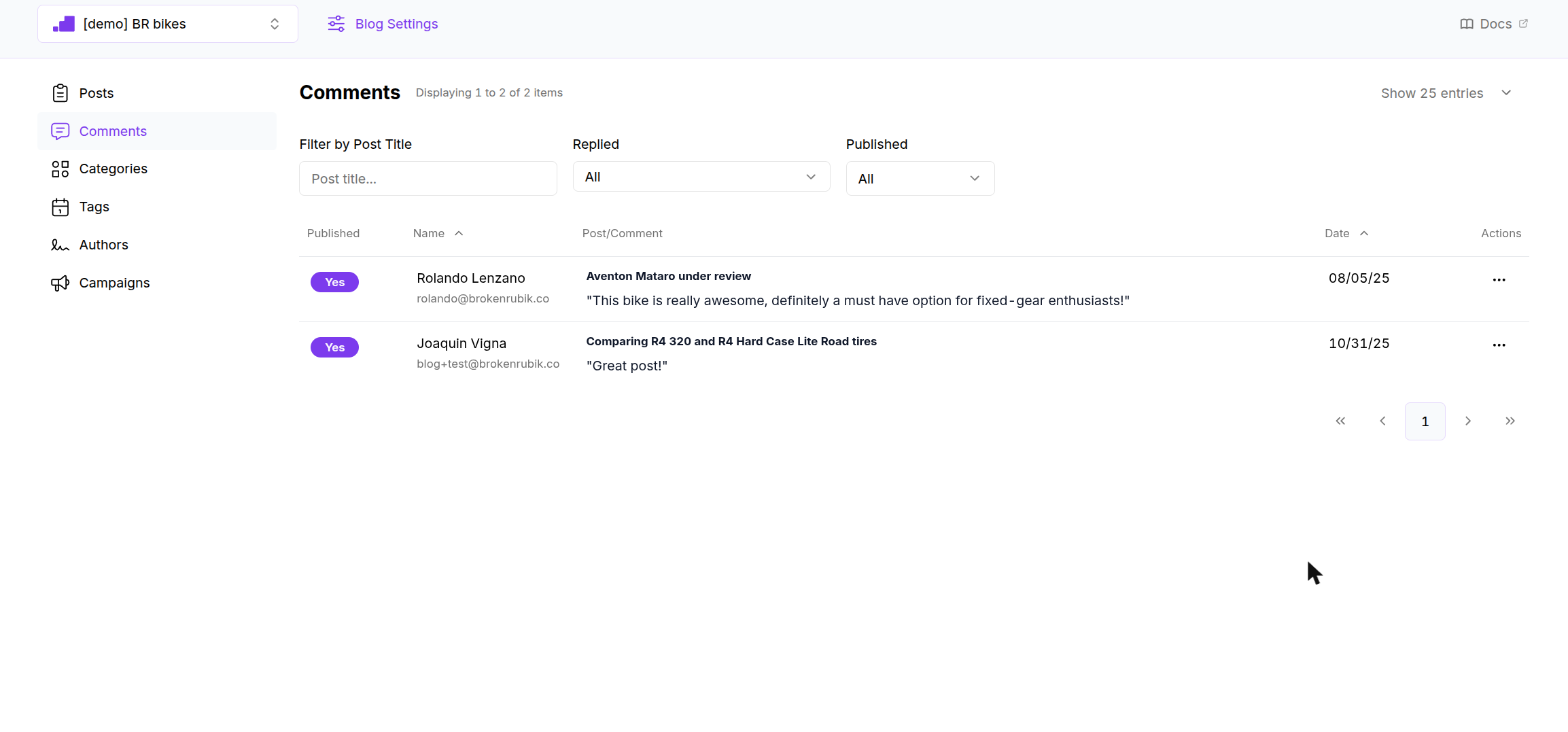
The list shows the top-level comments of the selected blog. Replies are not listed; they are shown inside their parent comment.
| Filter | Meaning |
|---|---|
| Filter by Post Title | Comments on posts whose title contains the text. |
| Replied | Yes: comments that already have a published reply. No: comments without one. |
| Published | Yes: comments visible on the site. No: inactive comments waiting for review. |
Columns: Published badge, Name with email, Post title with the quoted comment, Date, Actions. Name and Date sort.
When the Replied filter is set to Yes or No, the list always shows the first page of results.
Reviewing a comment
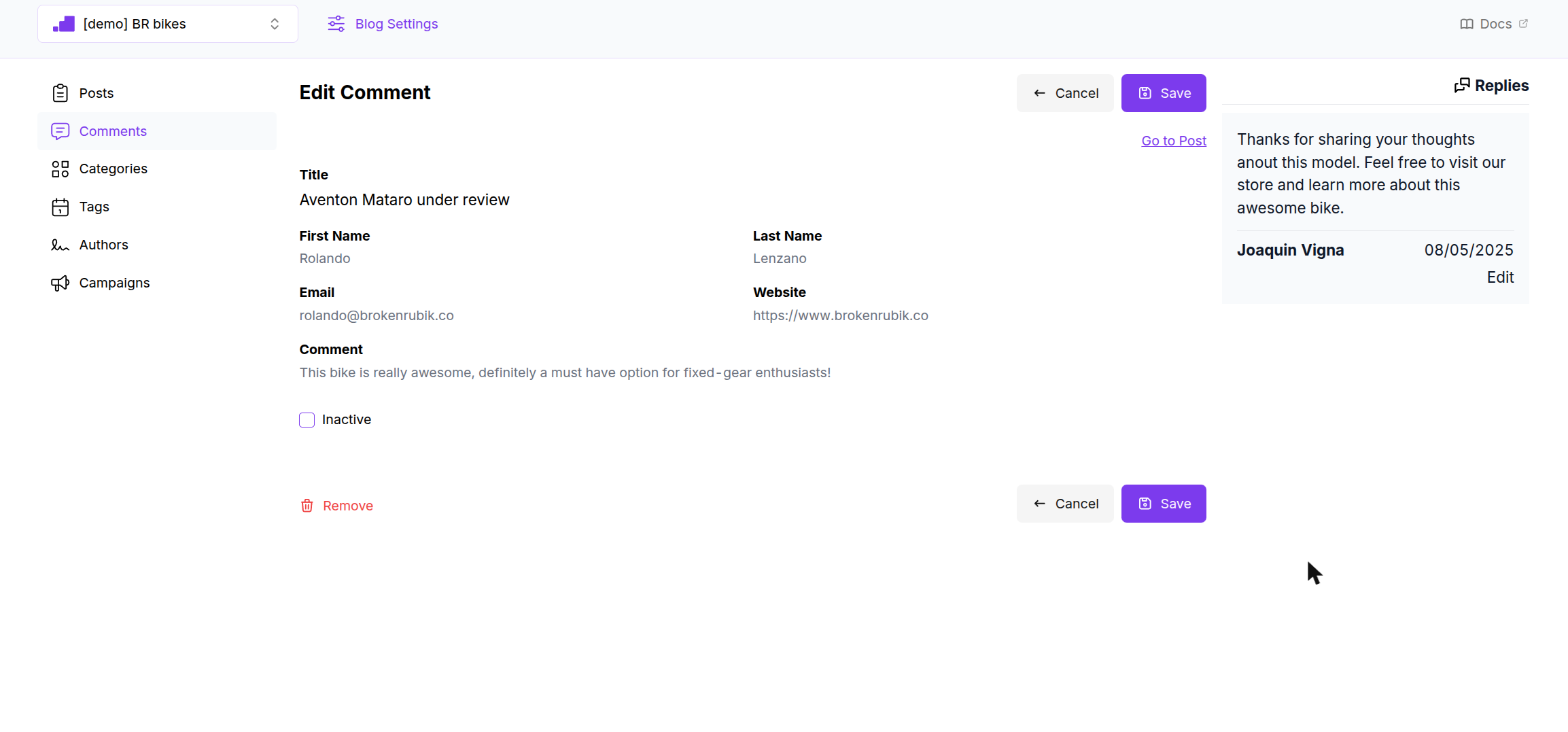
Click a comment to open it. The page shows the post title, with a Go to Post link, and the commenter's name, email, website and text. None of these can be edited.
- To publish a comment, untick Inactive and click Save. The toast "Comment saved" confirms it, and the comment appears on the post.
- To hide a published comment, tick Inactive and save.
- To delete a comment, click Remove and confirm. This is permanent.
Replying
The Replies panel on the right appears once a comment is published, or when it already has a reply.
- With no reply yet, the panel reads "This comment has no replies" with an Add one link.
- Add Reply asks for First Name, Last Name (up to 50 characters each) and Comment (up to 1000 characters), then Create. The reply is published immediately.
- Edit on an existing reply lets you change the text or Remove it.
Once a comment has a reply, Add one disappears. Edit the existing reply instead. Visitors cannot reply to each other.
What visitors see
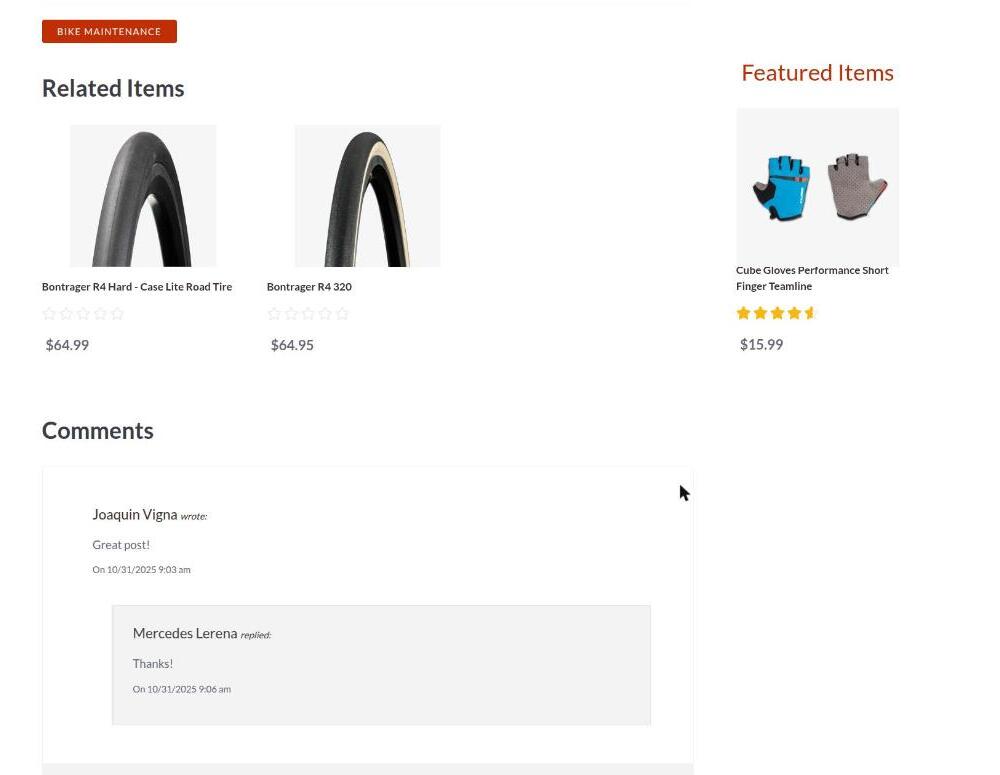
Published comments appear under the post, newest first, as "Name wrote:" followed by the text and the date. Your reply is nested underneath as "Name replied:". The commenter's name links to their website when they gave one.