Campaigns
A campaign is a set of clickable image banners shown on the blog for a period of time. Use campaigns for promotions, product launches or seasonal messages. Each banner links to a URL of your choice, which opens in a new tab.
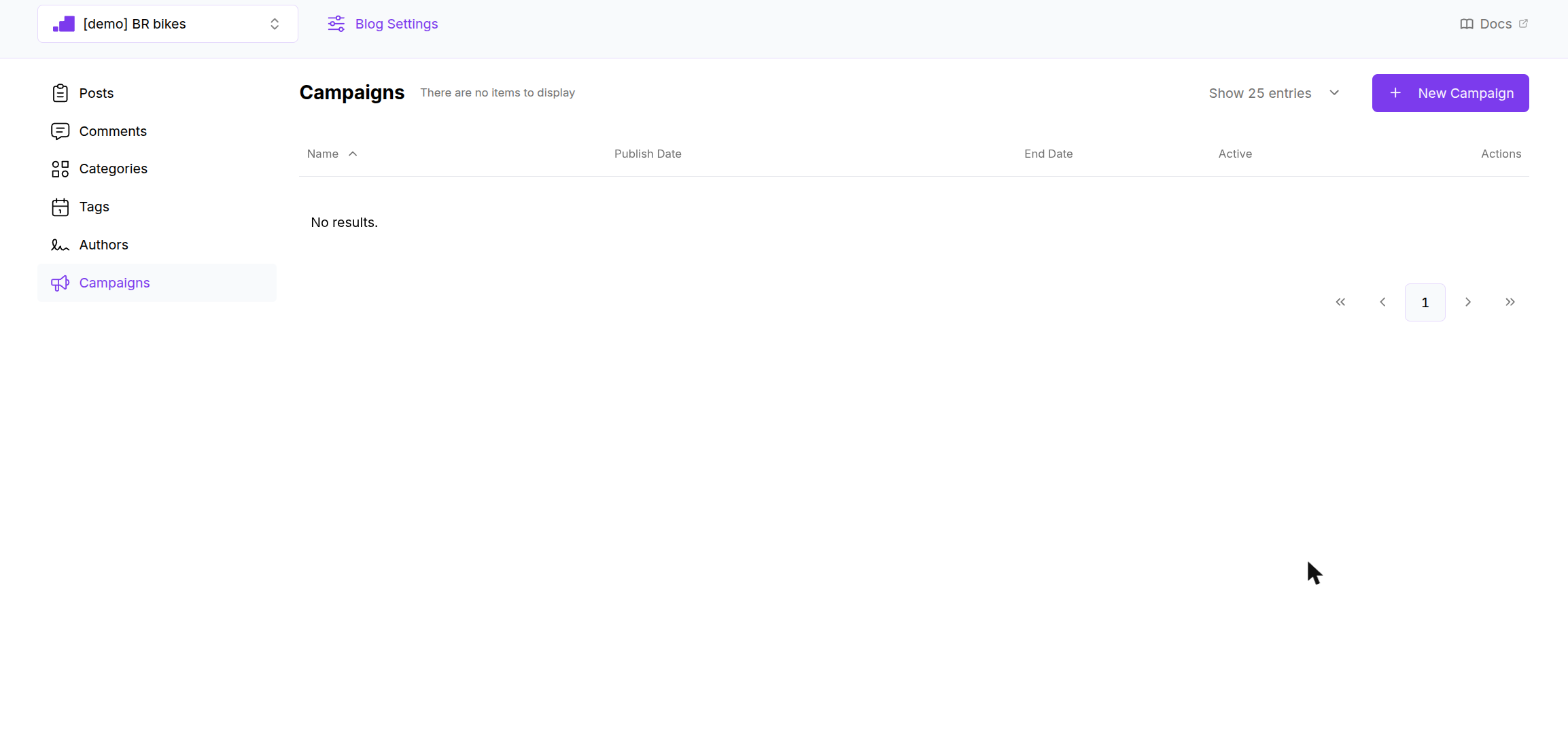
The list shows the campaigns of the selected blog with their name, publish date, end date and an Active badge. The badge is Yes when the campaign is not inactive and its end date has not passed. Only Name sorts.
Remove in the row menu deletes the campaign permanently, without a confirmation dialog. Open the campaign and use Remove at the bottom of the form if you want a confirmation step.
Where banners appear
A campaign has five banner slots. Each takes one image and one link.
| Slot | Where it shows |
|---|---|
| Top Banner Desktop | Above the content on wide screens |
| Top Banner Mobile | Above the content on phones |
| Bottom Banner Desktop | Below the content on wide screens |
| Bottom Banner Mobile | Below the content on phones |
| Right Banner Desktop | In the sidebar, under the categories, on wide screens only |
You do not have to fill every slot. Provide a mobile version when you fill a desktop top or bottom slot, otherwise phones show nothing there.
Creating a campaign
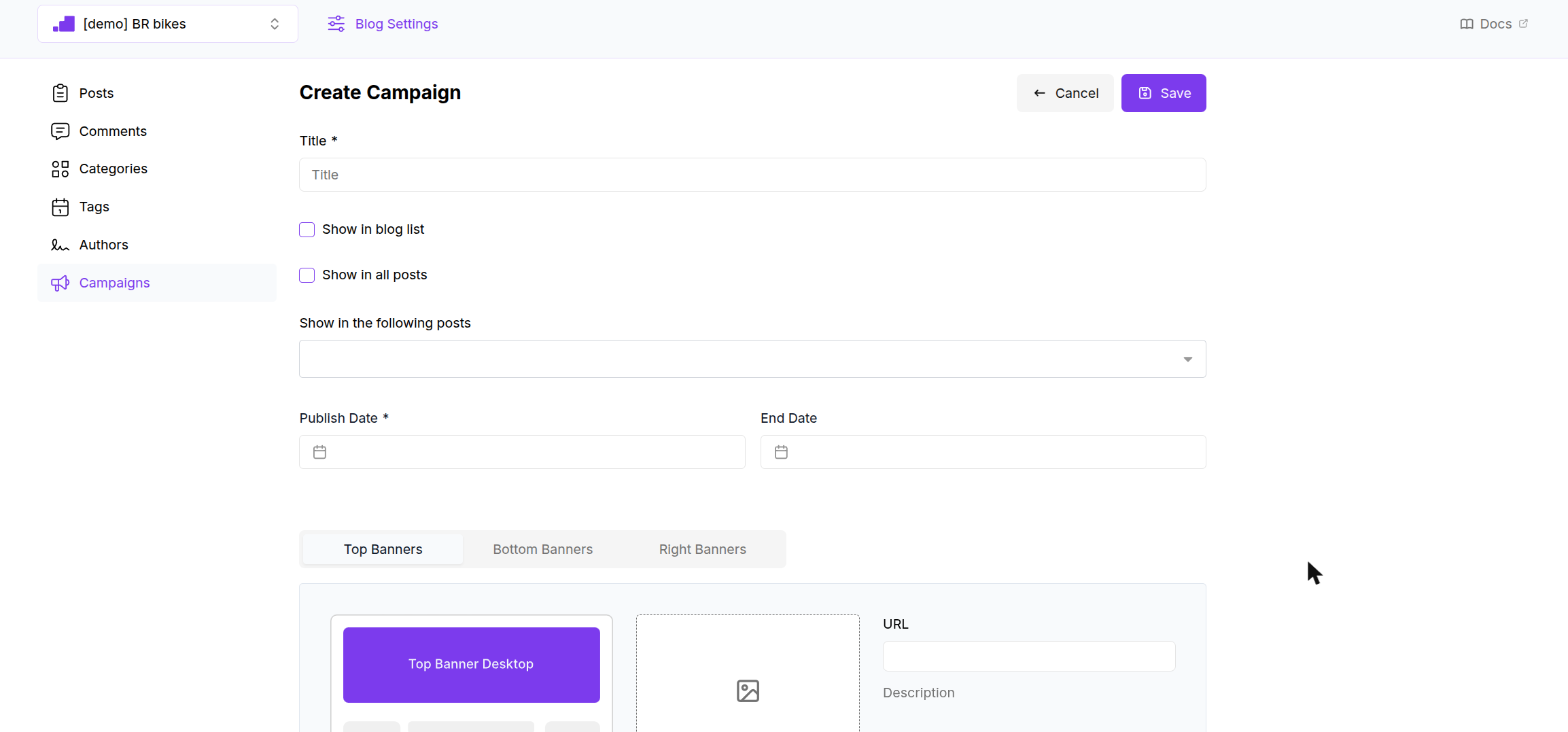
Click New Campaign. The form is a full page.
| Field | Required | Rules |
|---|---|---|
| Title | Yes | Up to 100 characters. Internal only, visitors never see it. |
| Show in blog list | Shows the banners on the blog home and on category, tag, author, archive and search pages. | |
| Show in all posts | Shows the banners on every post page. Hides the post picker below. | |
| Show in the following posts | Pick specific posts. Only active posts of the blog are listed. | |
| Publish Date | Yes | The date and time the banners start showing. |
| End Date | No | The date and time they stop. |
| Banners | Three tabs: Top Banners, Bottom Banners and Right Banners. Each slot has an Upload Photo button for a PNG or JPG up to 5 MB, and a URL field. | |
| Inactive | Marks the campaign inactive in the dashboard. |
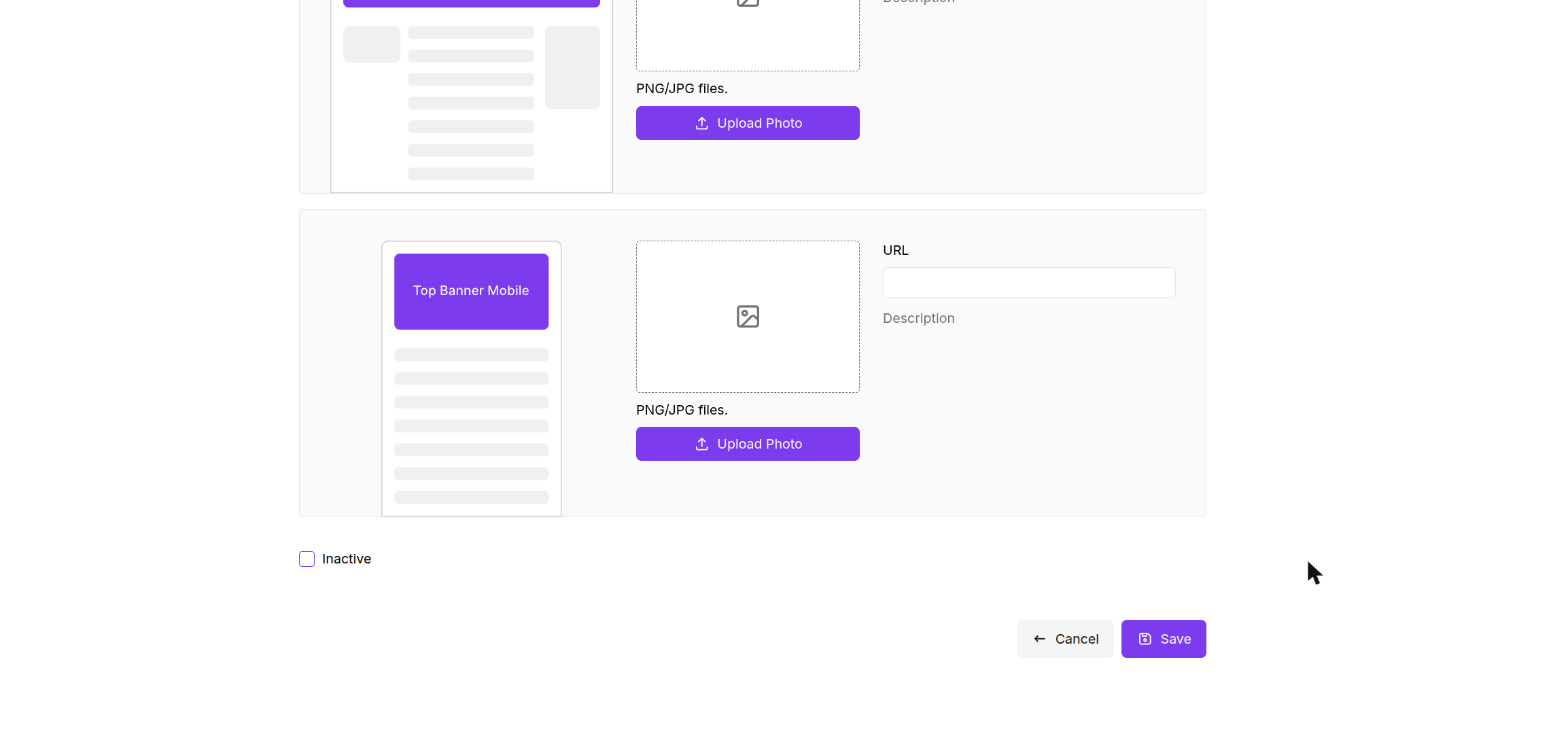
At least one of Show in blog list, Show in all posts or a post selection is required. Otherwise saving fails with "You must select at least one post or enable "Show in blog list" or "Show in all posts"".
A banner needs both an image and a link. An image without a link, or a link without an image, fails with "If you add a banner, you must add a link to it".
Click Save. The toast "Campaign saved" appears and the form switches to edit mode.
How the site picks a campaign
- On a post page, the site looks for a campaign of the blog that includes that post, or has Show in all posts, whose publish date has passed and whose end date has not.
- On list pages, it looks for a campaign with Show in blog list in the same date window.
- Only one campaign shows per page. If several match, which one appears is not defined. Use dates so that campaigns do not overlap, or target them at different posts.
- The site does not check the Inactive checkbox. To stop a campaign, set its End Date to the past or delete it.
Image sizes
There are no enforced dimensions. As a guide: top and bottom desktop banners fill the content column, so a wide image around 1200 px by 250 px works well. Mobile banners should be around 600 px wide. The right banner sits in a sidebar around 300 px wide, so use a portrait or square image.